
Home › Guides › Edge Line Grooves
Cut a groove with one key: SketchUp shortcuts
SketchUp lets you give any command a key of your own, and that includes extension commands. Set one for Quick Groove and you can select lines and cut them with a single key press, using the last width and depth.
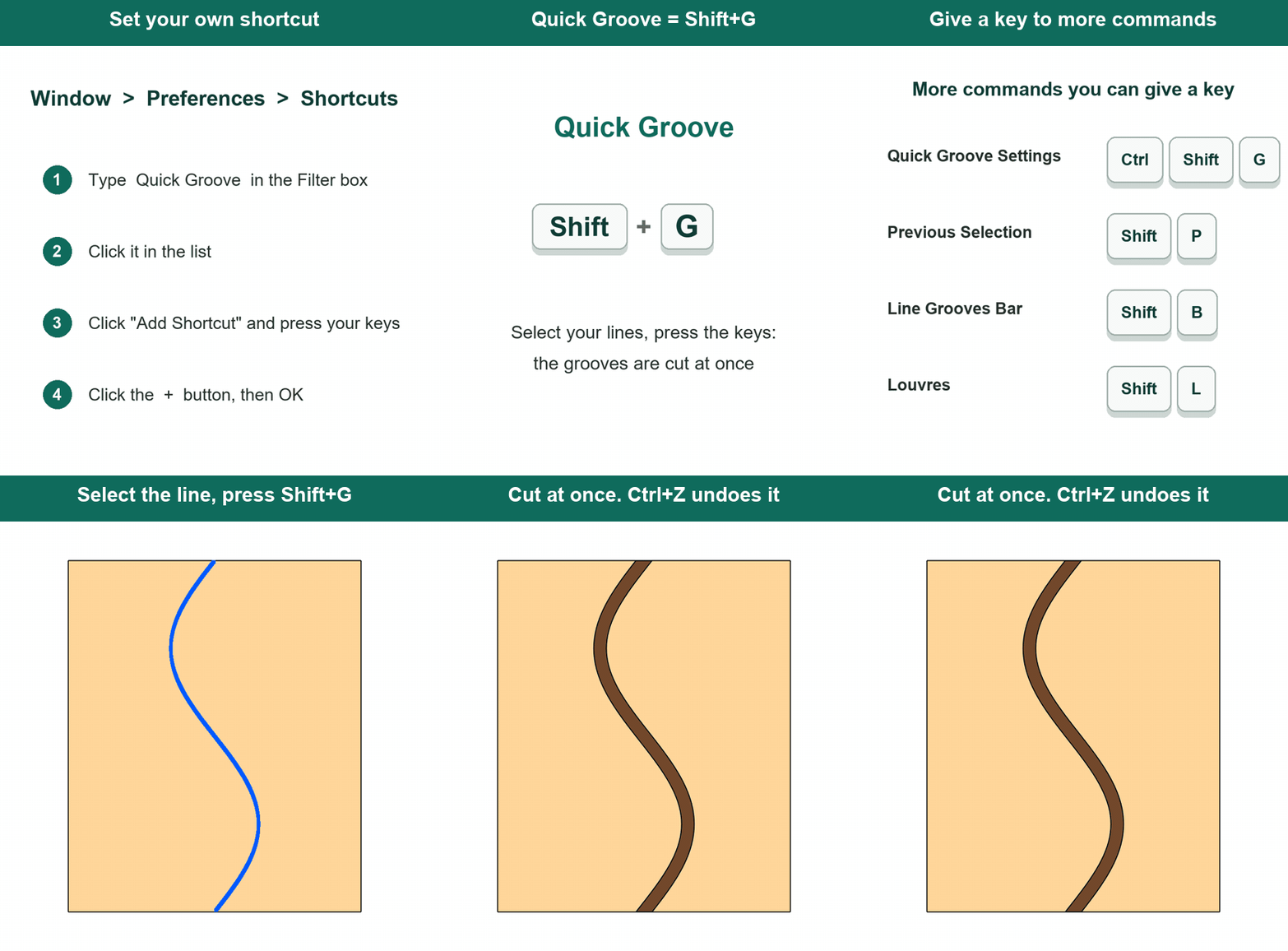
Step by step
- In SketchUp choose Window > Preferences > Shortcuts.
- Type "Quick Groove" in the Filter box and click it in the list.
- Click the Add Shortcut box, press your keys (for example Shift+G), click the + button, then OK.
- Select your lines and press Shift+G: Quick Groove cuts them at once, with the last width and depth you used.
Good to know
- Quick Groove Settings opens a small window to change the width and depth. Give it a key too, for example Ctrl+Shift+G.
- Previous Selection selects the lines of your last cut again: handy after Ctrl+Z, to change the width and cut again.
- If SketchUp says a key is already used, it shows what for. Just choose another one.
Doing it without an extension
The same Preferences > Shortcuts page works for every SketchUp command: type part of the name in Filter, pick it, press your keys in Add Shortcut and click +. Export your shortcuts from the same page to take them to another computer.
Try it on your own model
Edge Line Grooves has a free 14-day trial with every feature. No card needed. SketchUp 2019 to 2027 on Windows. On a Mac it is not tested yet, so please check it with the trial first.
Related guides
- How to cut a groove in SketchUp from a line
Turn any line or curve on a face into a clean recessed groove in SketchUp, with your own width and depth. Step by step, with an animation.
- Paint grooves a different material in SketchUp
Give groove sides and floors their own material in SketchUp as they are cut, and use the Line Grooves Bar to cut by typing width;depth.